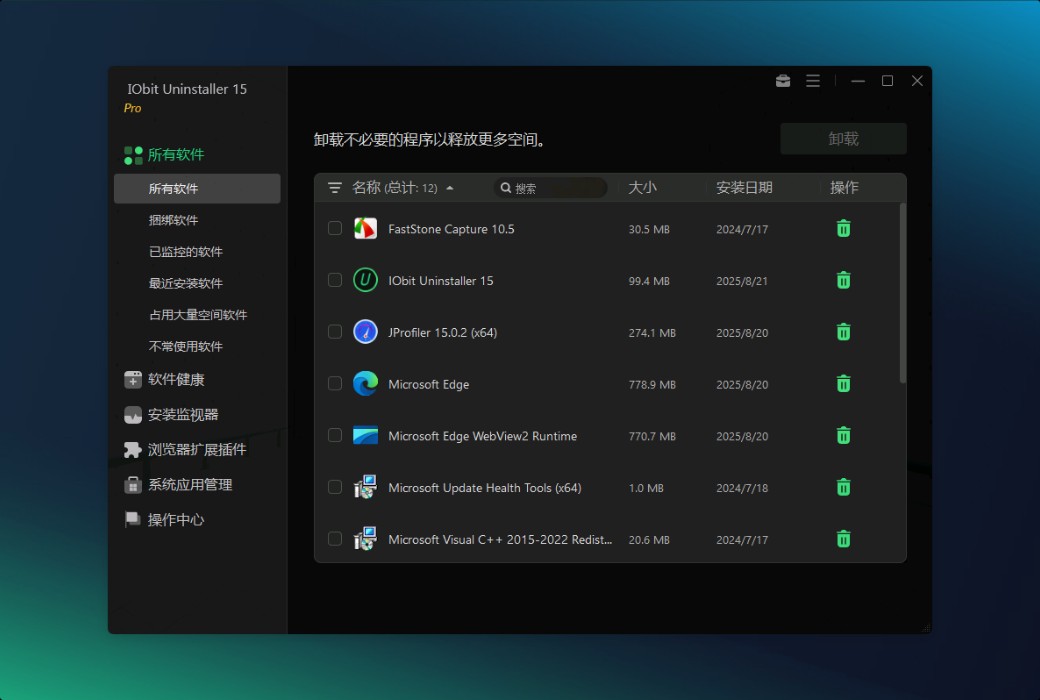
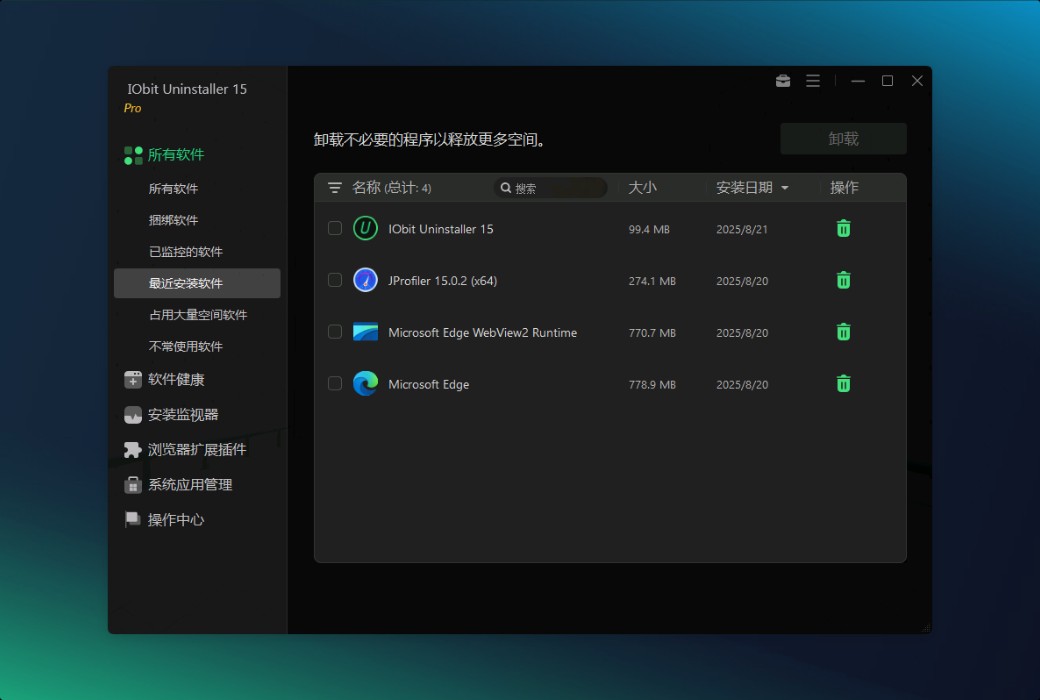
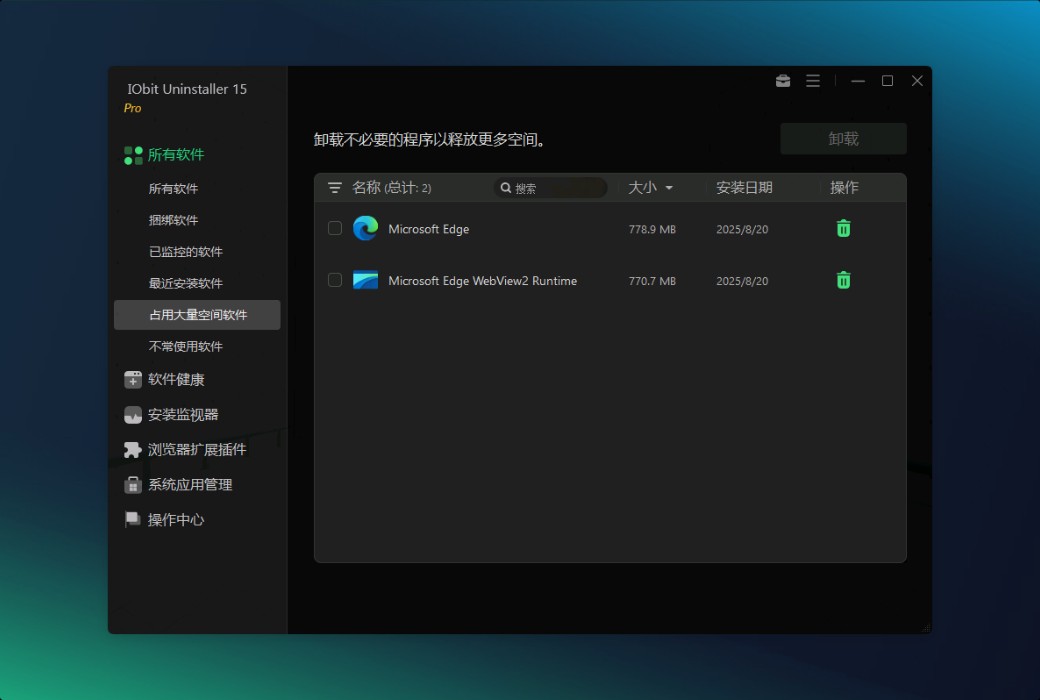
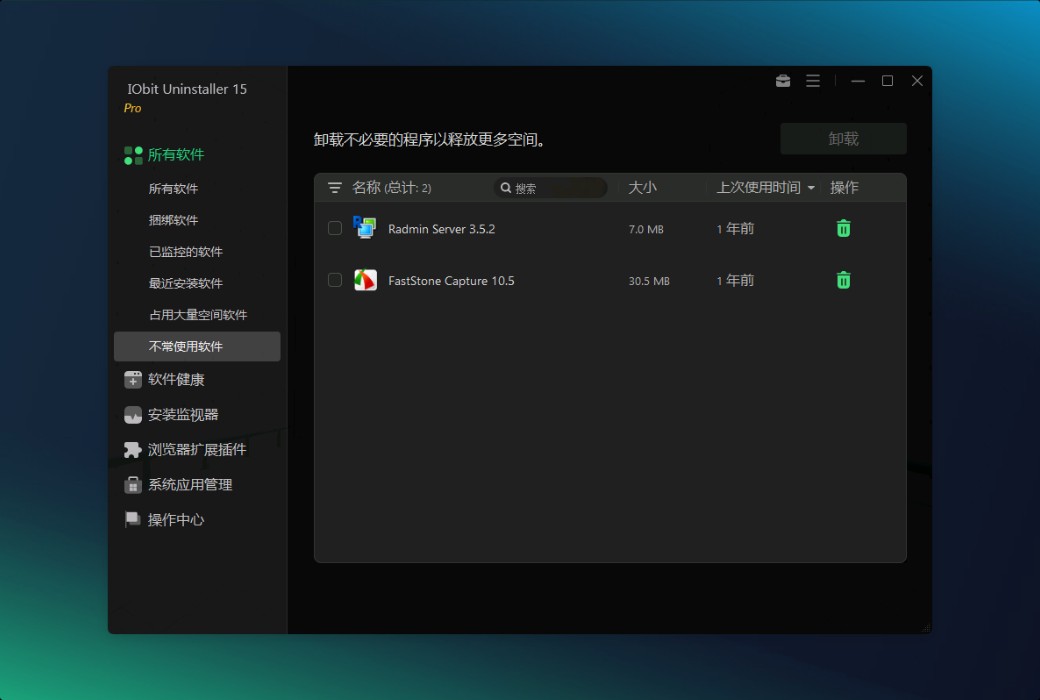
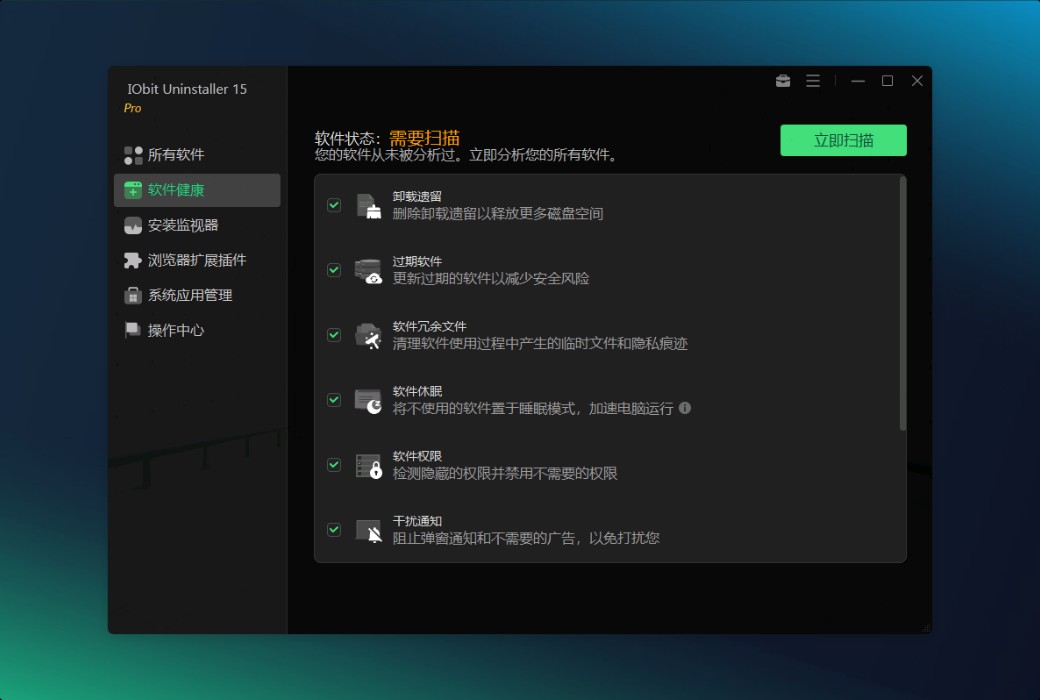
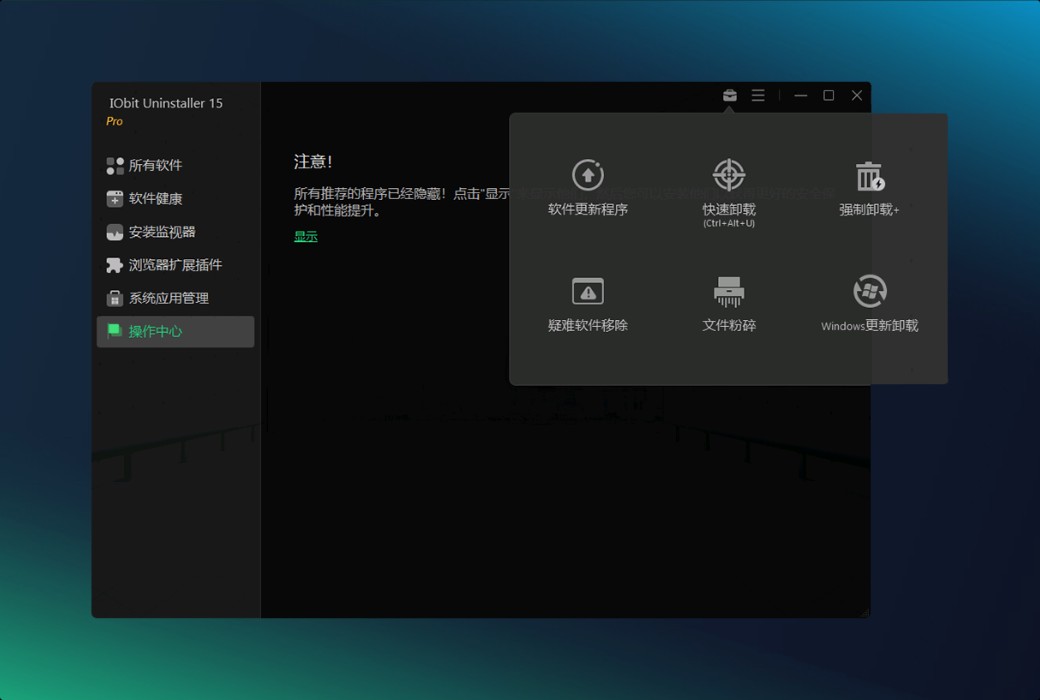
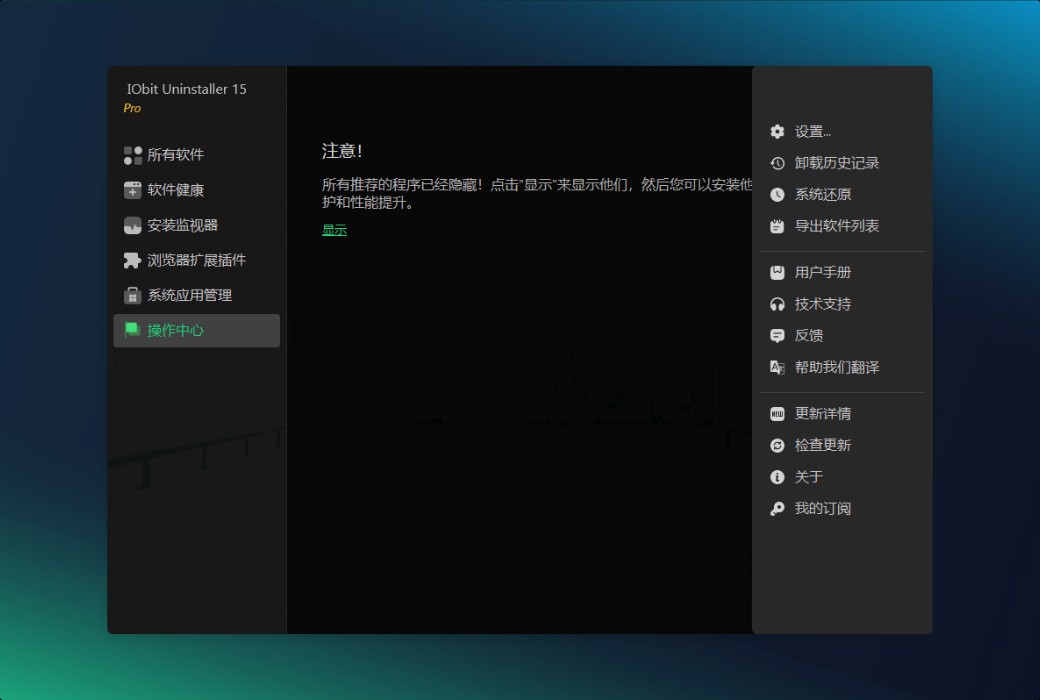
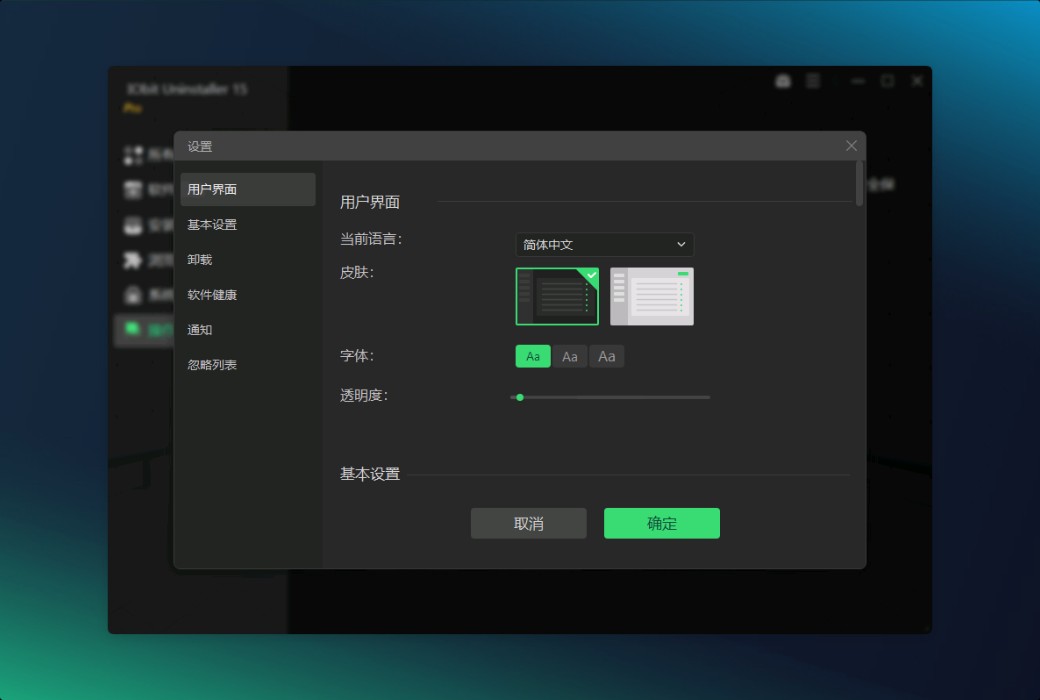
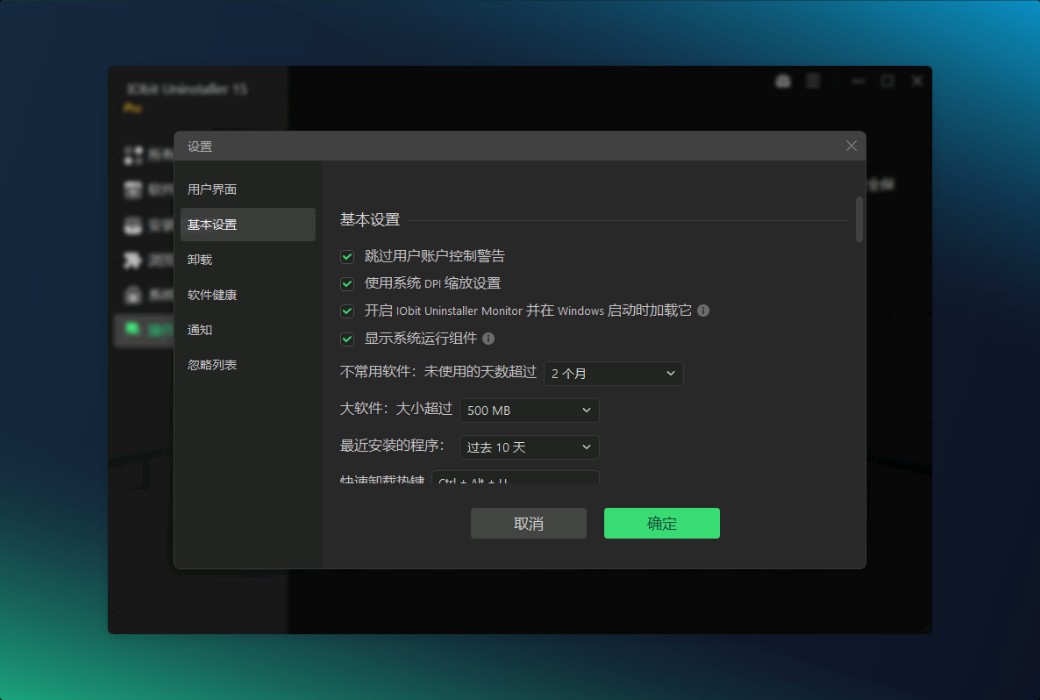
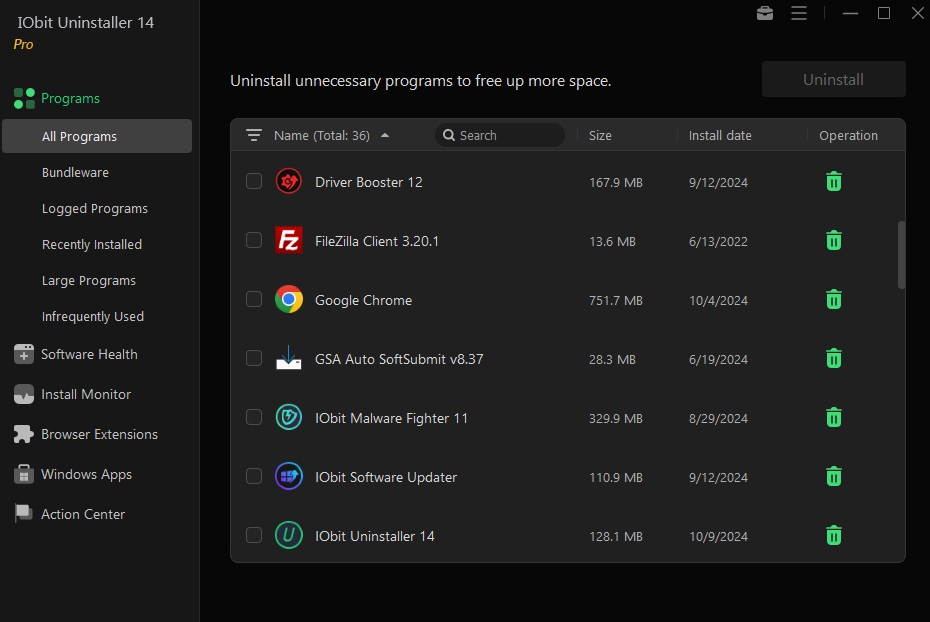
- The program is divided into six categories:All programs, bundled software, recorded programs, recently installed programs, large programs, and infrequently used programs.
All programs -List all programs installed on the computer.
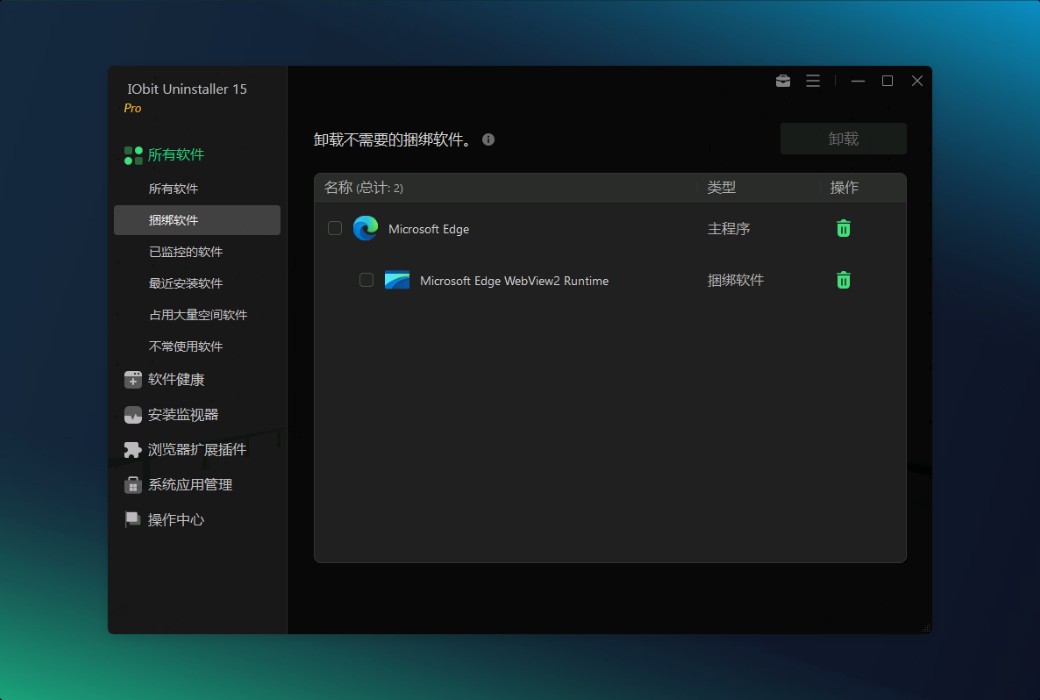
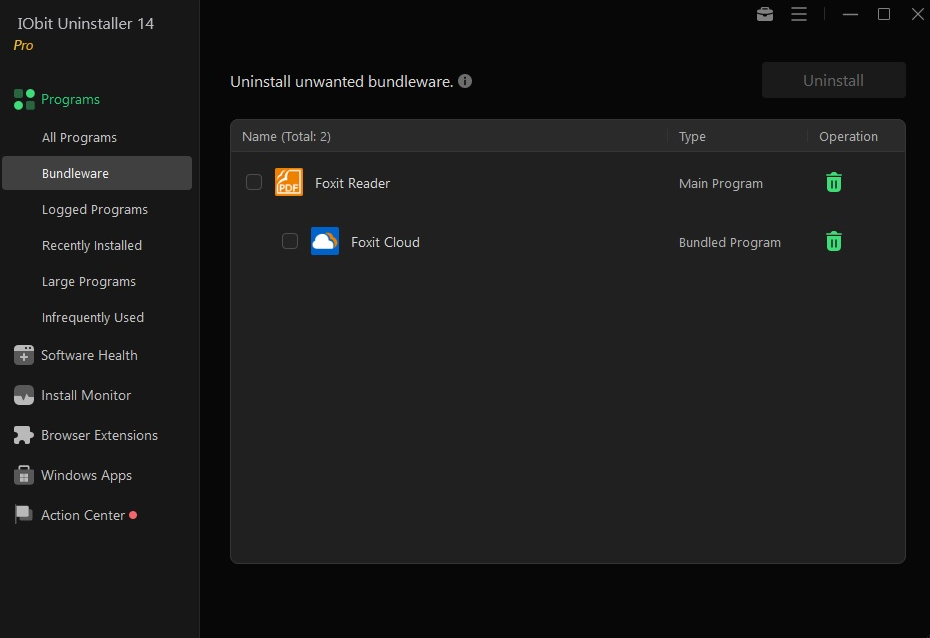
Bundled software;-List all bundled software installed on your computer.
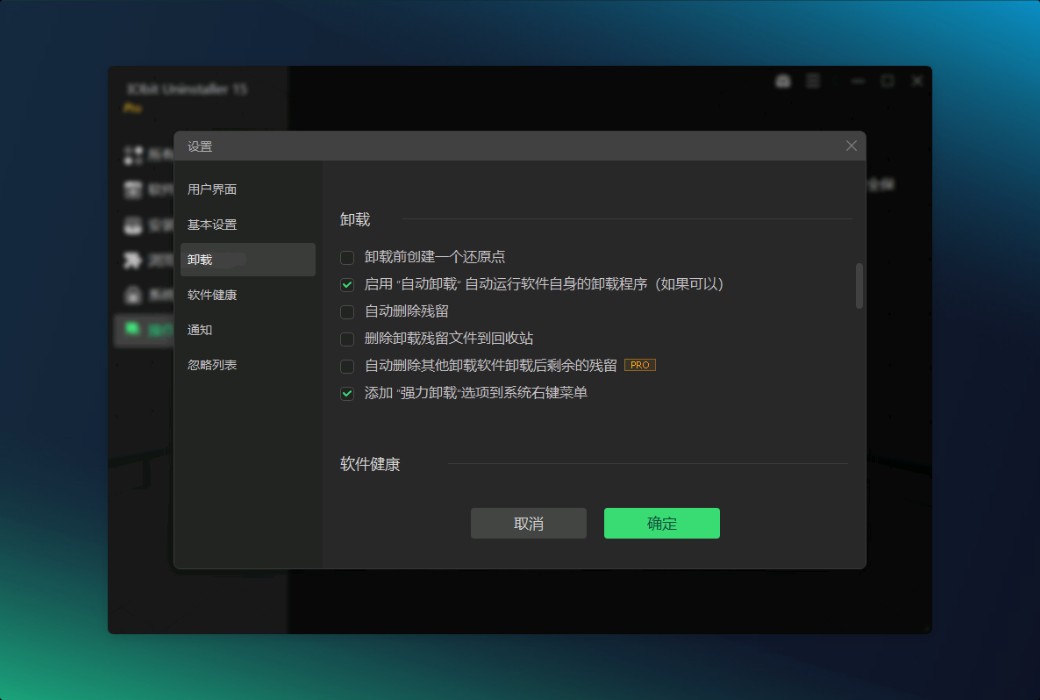
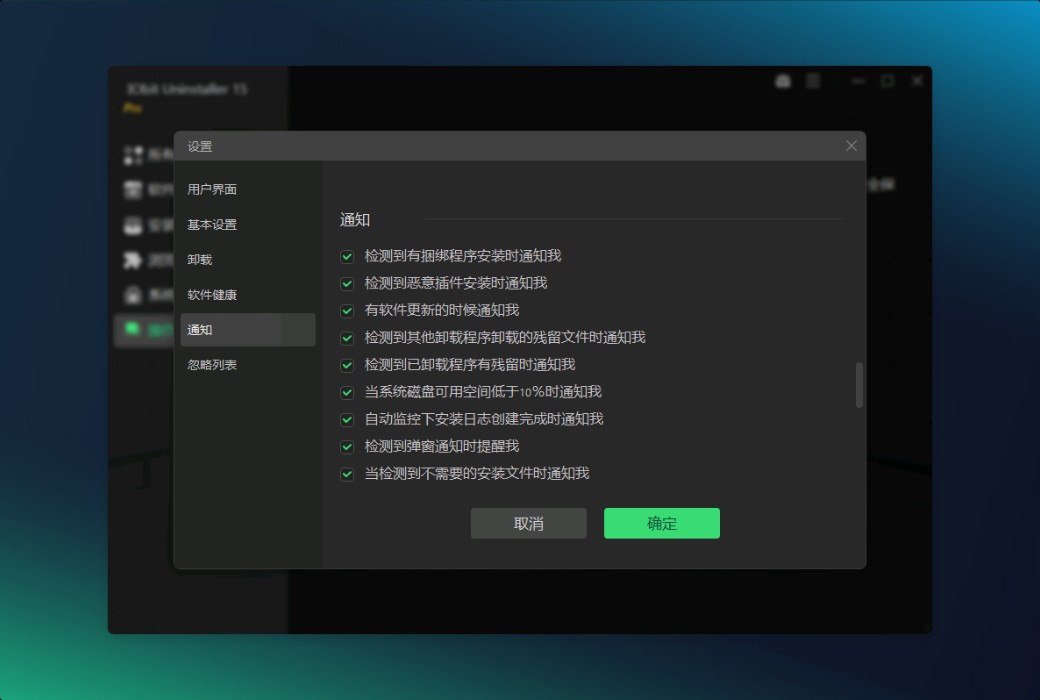
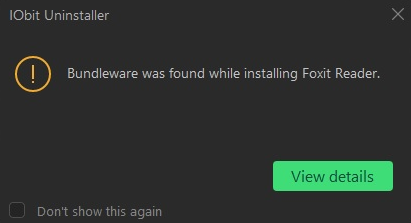
When you install the main program, some other programs may also be installed without your notification. IObit Uninstaller can monitor program installation in real-time and notify you when installing bundled software, if you have the option; Notify me when installing bundled software; Check the box in the settings. Click View details Button to check all installed bundled software. Attention: PRO users can easily and conveniently remove all bundled software.
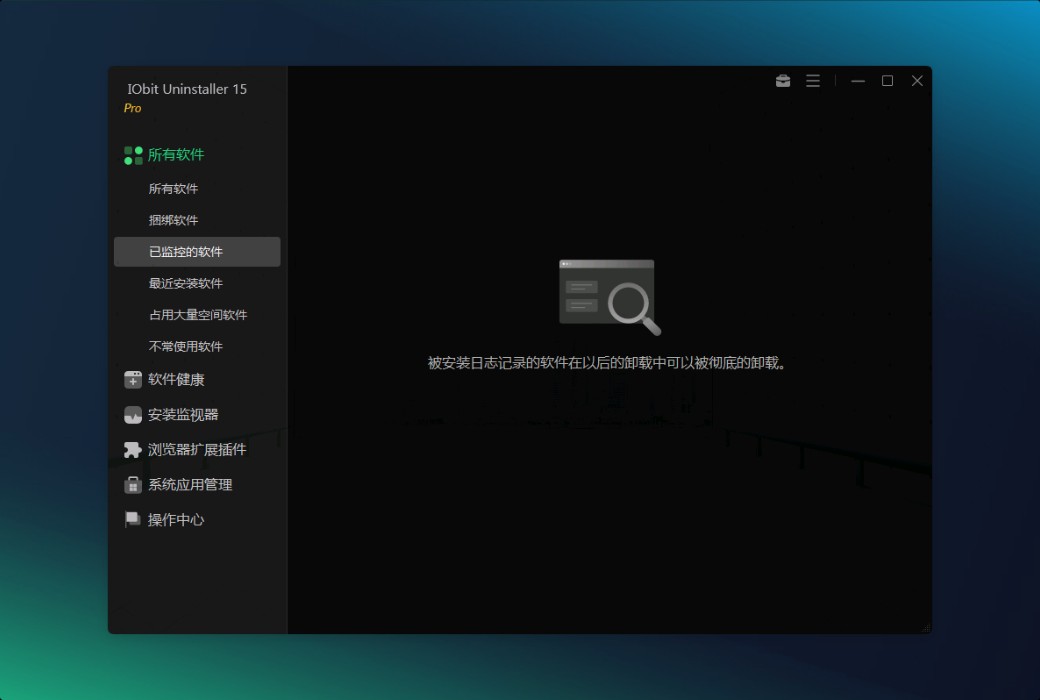
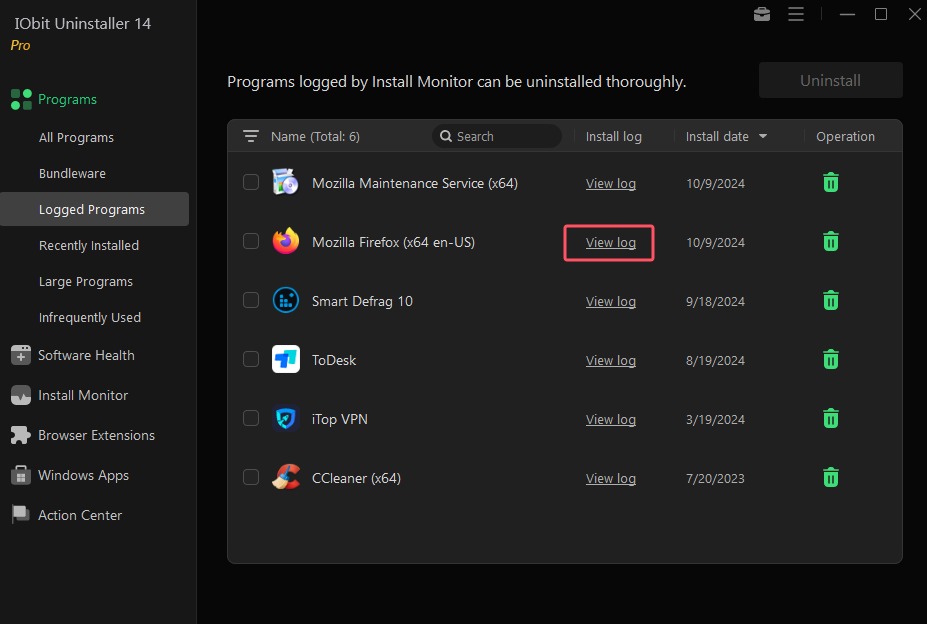
Recorded program -List all programs installed by the monitor to record its installation.
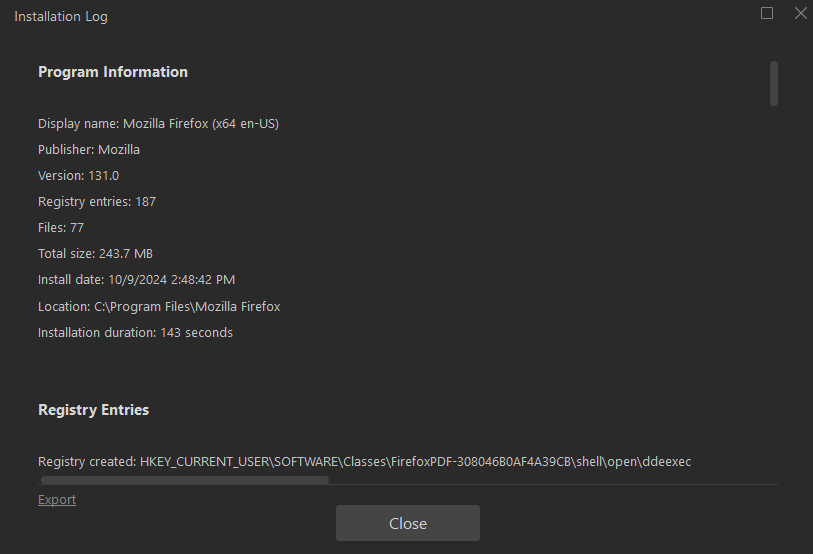
Click View the log link to further examine the installation logs and check all files and registry entries created during the installation process.
PRO users can use the installation logs created during the installation process to completely uninstall the recorded program.
Recently installed programs-List the programs installed in the past 10 days.
Large scale programs;-List programs larger than 100 MB in size.
Not frequently used;-List the programs you haven't used in the past two months.

-You can type the keywords of the program here to quickly find it.

-You can click&bsp; Name List all programs in alphabetical order.

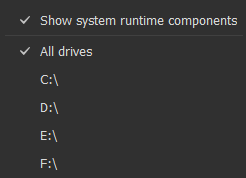
-You can click&bsp; Name The filter icon next to the column is used to filter the programs to be uninstalled according to your needs (for example, filter by specified disk drive).
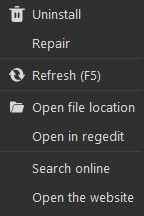
Right click on the program to view and select menu options: uninstall, repair, refresh, open file location, open in regedit, search online, and open website.
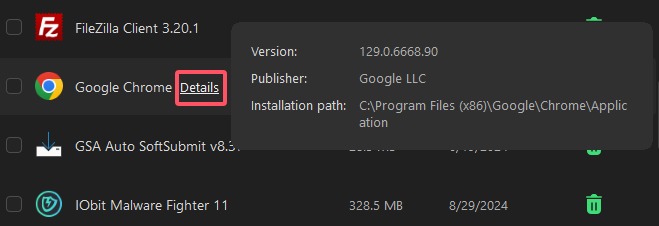
Click Details Link to learn more about the project.
-Uninstall program
1. Select unnecessary programs by checking the checkbox in front of them. You can also choose to uninstall multiple programs simultaneously.
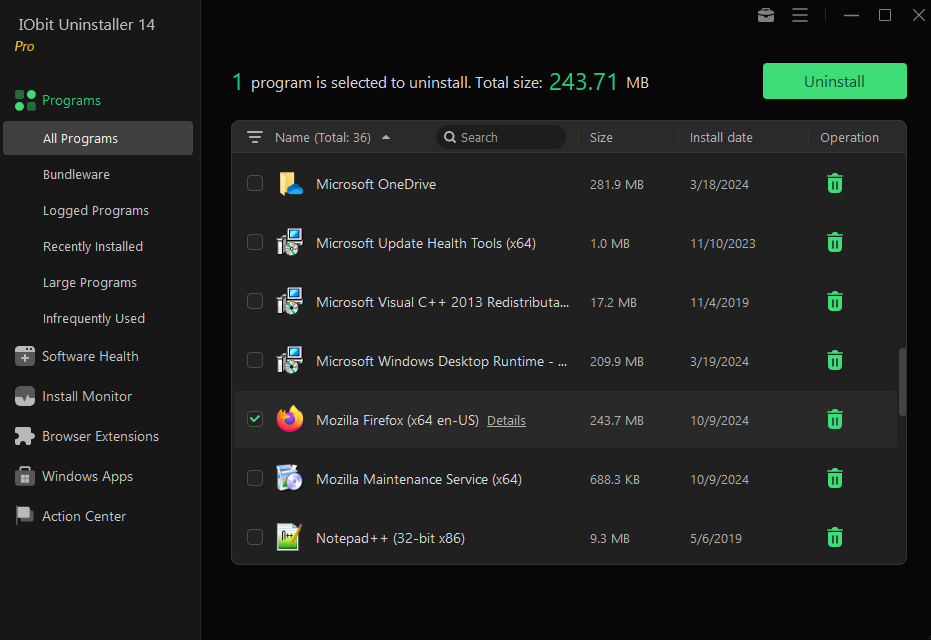
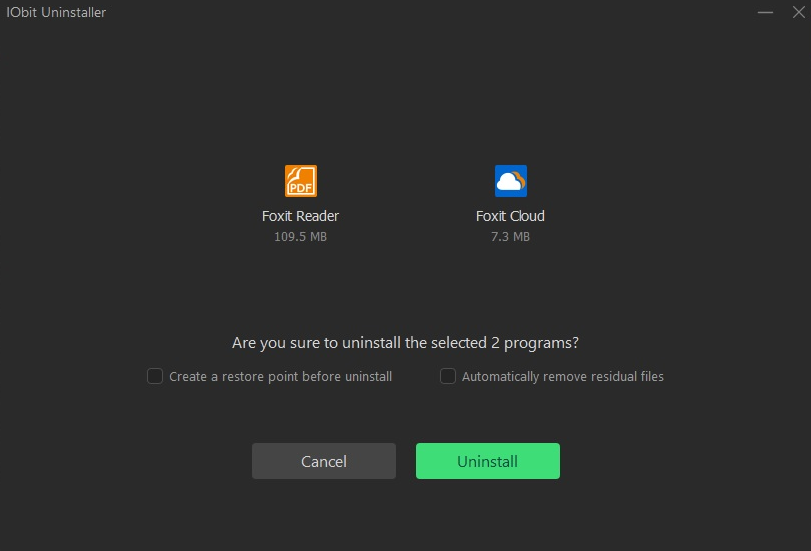
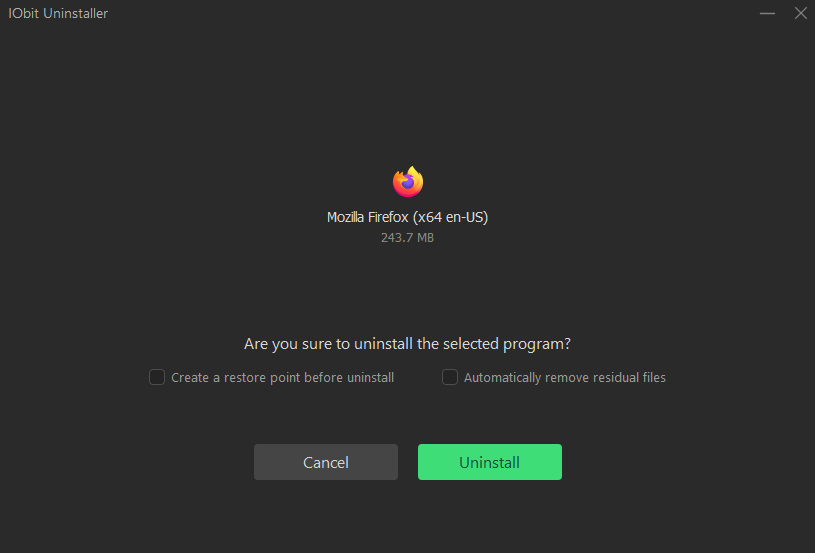
After selecting unnecessary programs, you can click on the trash can icon or; Uninstall The button starts the uninstallation process. But before uninstalling, we provide you with two options.
Create a restore point before uninstallation -After selecting this option, IObit Uninstaller will create a restore point before uninstalling the program, so that the system can be restored to a good state in case of any unexpected situations. But this process takes some time.
Automatically delete residual files -Selecting it means that all residual files found will be automatically deleted after the built-in uninstallation is completed.
Select the options you need and click on them; Uninstall Start uninstalling the selected program.
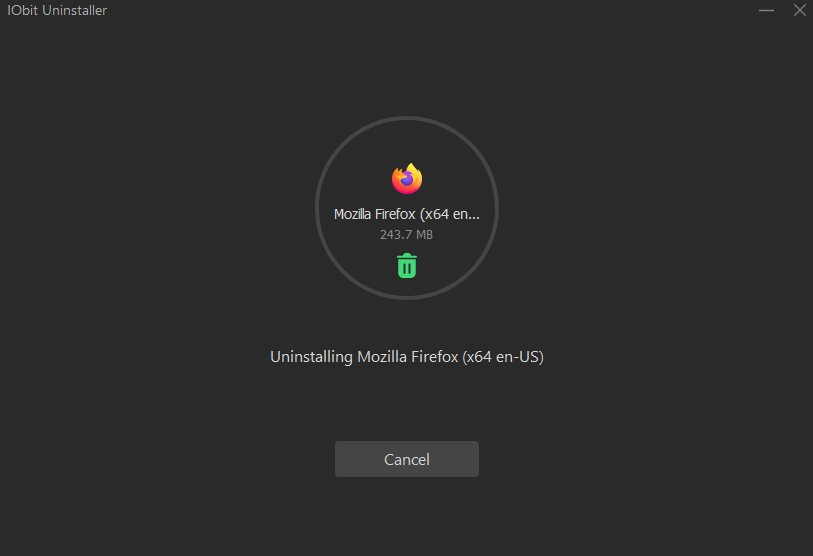
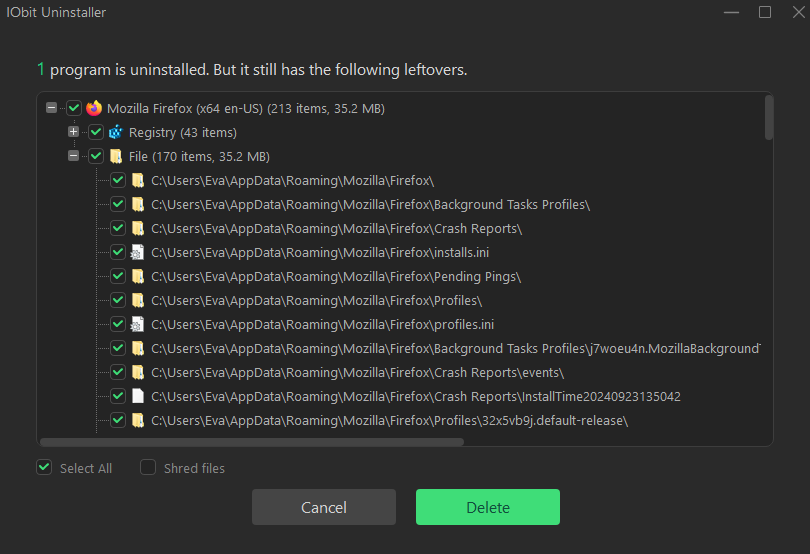
3. If you do not select the option to automatically delete residual files, IObit Uninstall will scan and list all remaining program parts and registry entries after built-in uninstallation. You can choose to delete unnecessary items.
By selecting Shred files will shred the remaining parts when deleting them. Therefore, these files will be completely permanently erased and cannot be recovered through any recovery tool.
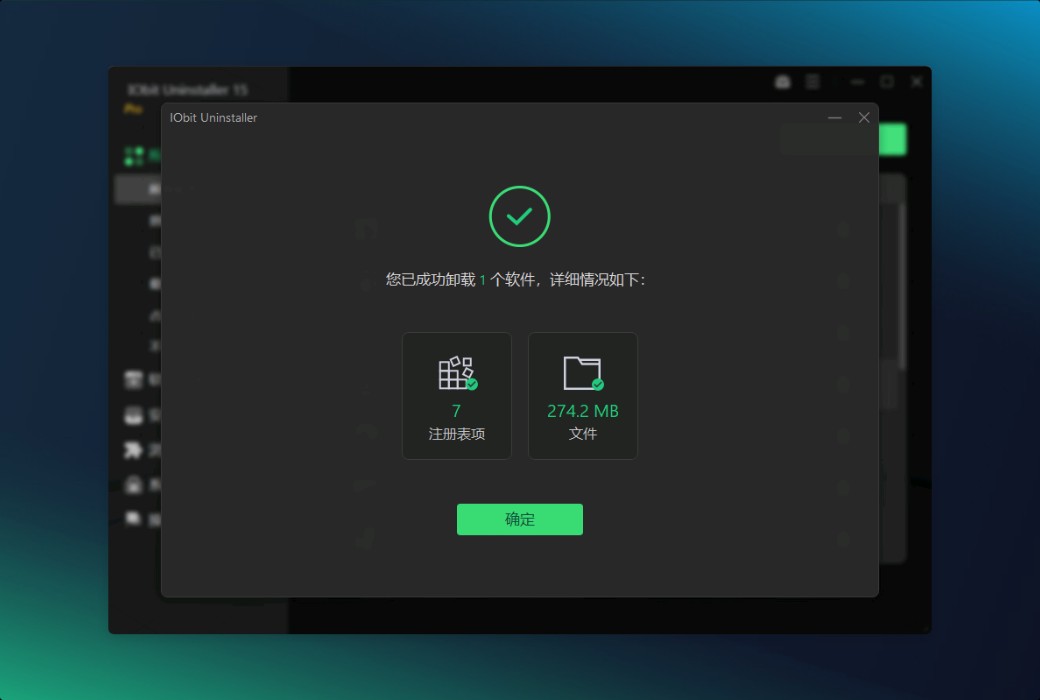
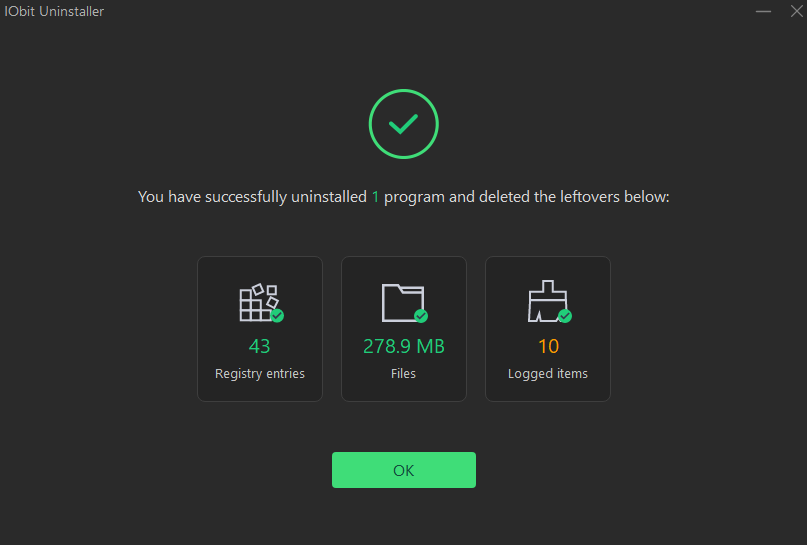
4. You have successfully uninstalled the selected program!
Published on 2025-05-12
广东