Configure UI
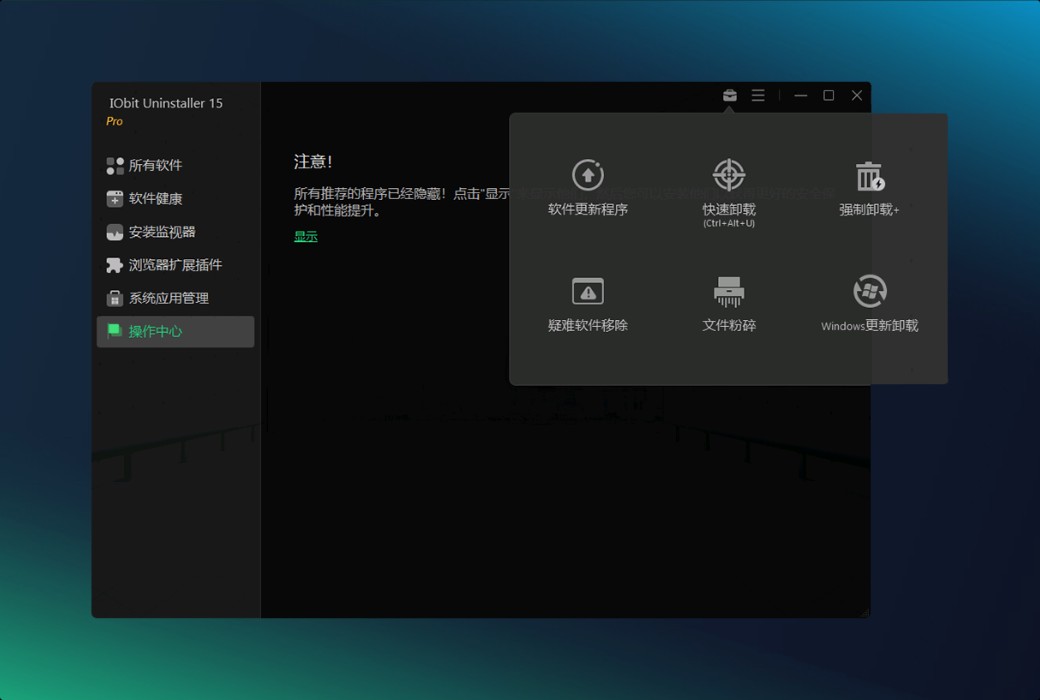
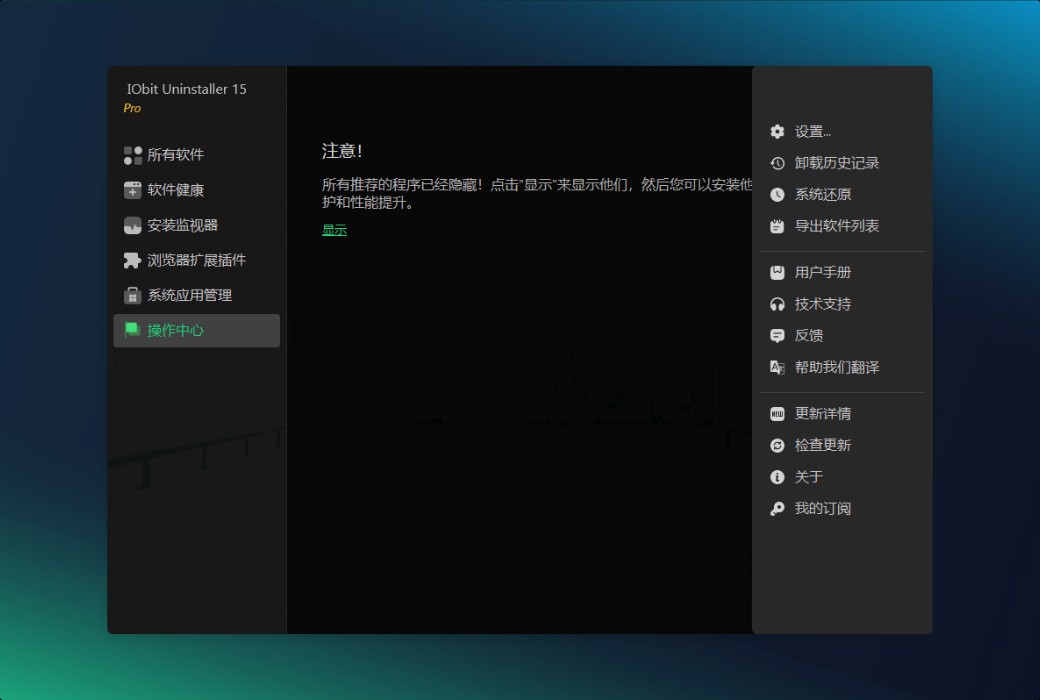
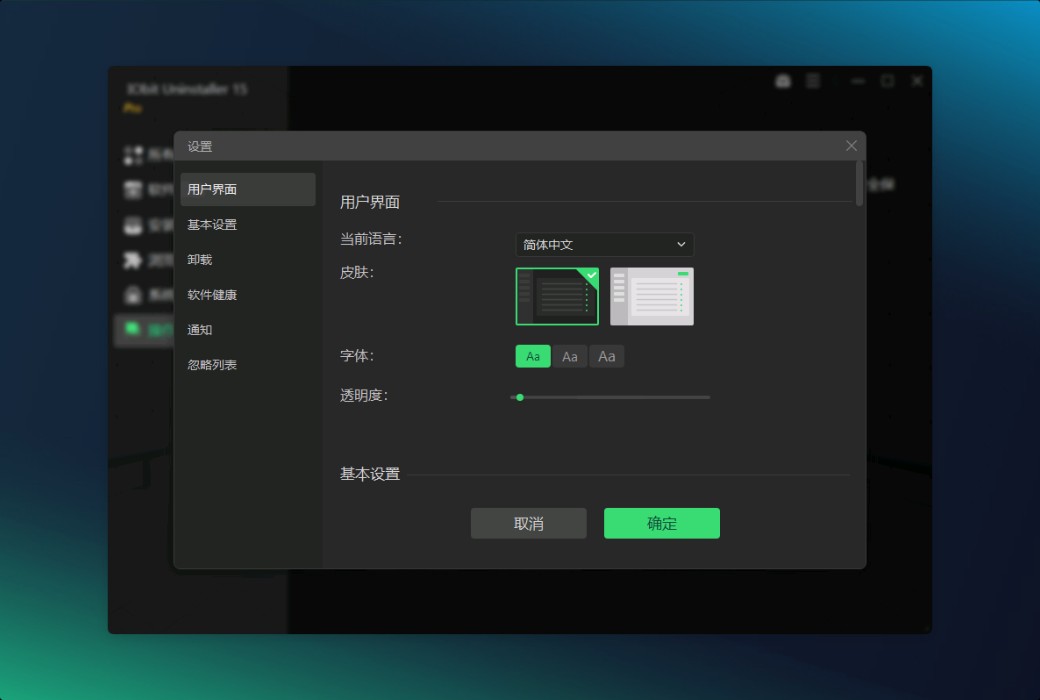
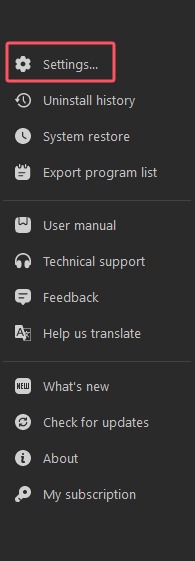
To configure the UI to your favorite UI, click on the button in the upper right corner of the home screen;Options Icon, then click Settings Open the settings screen.
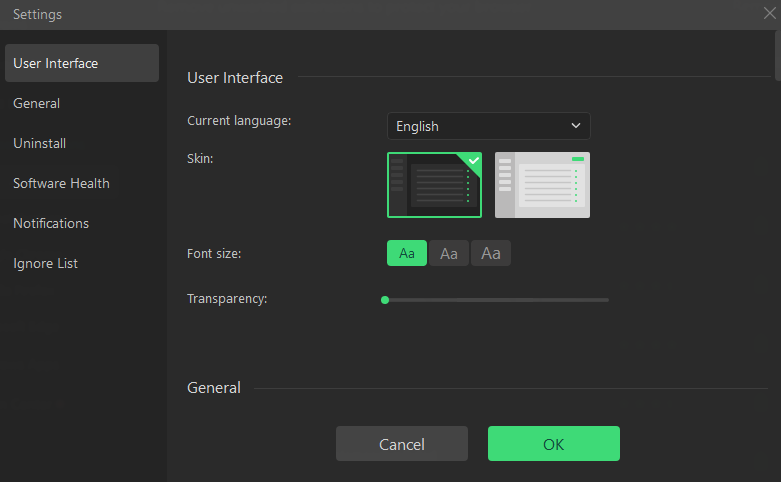
-Click on the dropdown menu for the current language to manually select your language.
-IObit Uninstaller offers two skins: Dark; And Light。 You can choose the one you like.
-Click on the font size that needs to be changed (if the default font size is not suitable for you).
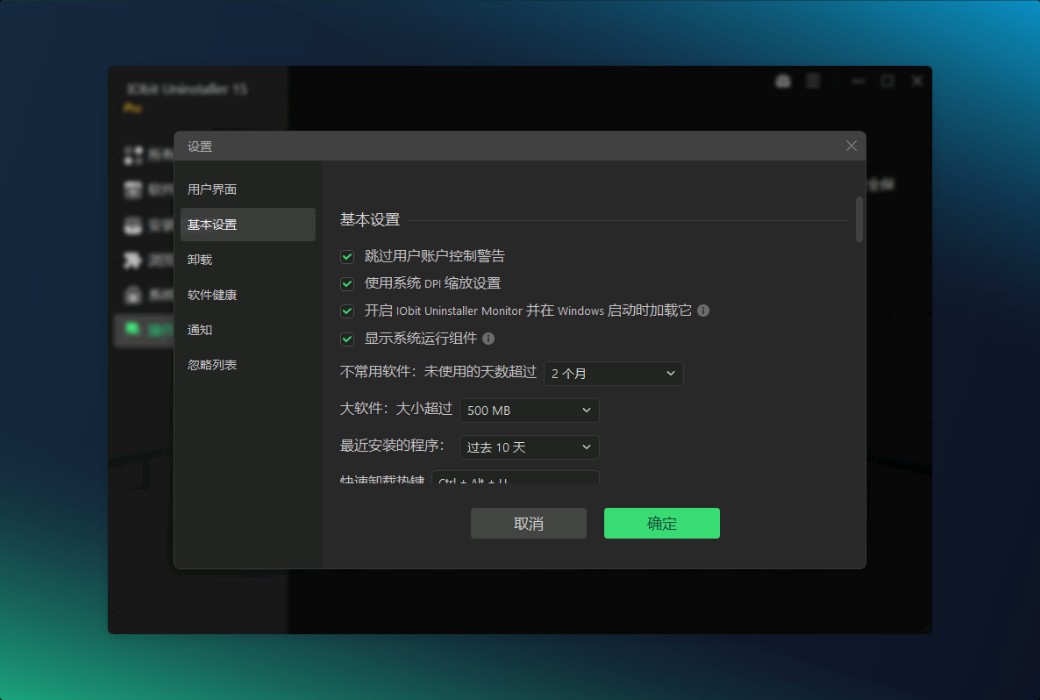
-You can make changes here; The hotkey for Easy Uninstall.
convention
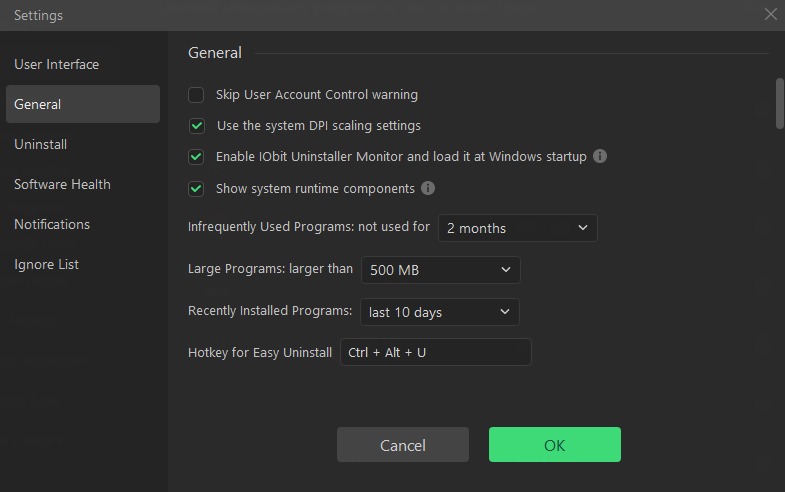
Do not display system runtime components: By selecting this option, system components such as Microsoft. NET Framework, Microsoft Visual C++Redistributable, and Microsoft XNA will not be displayed in Programs.
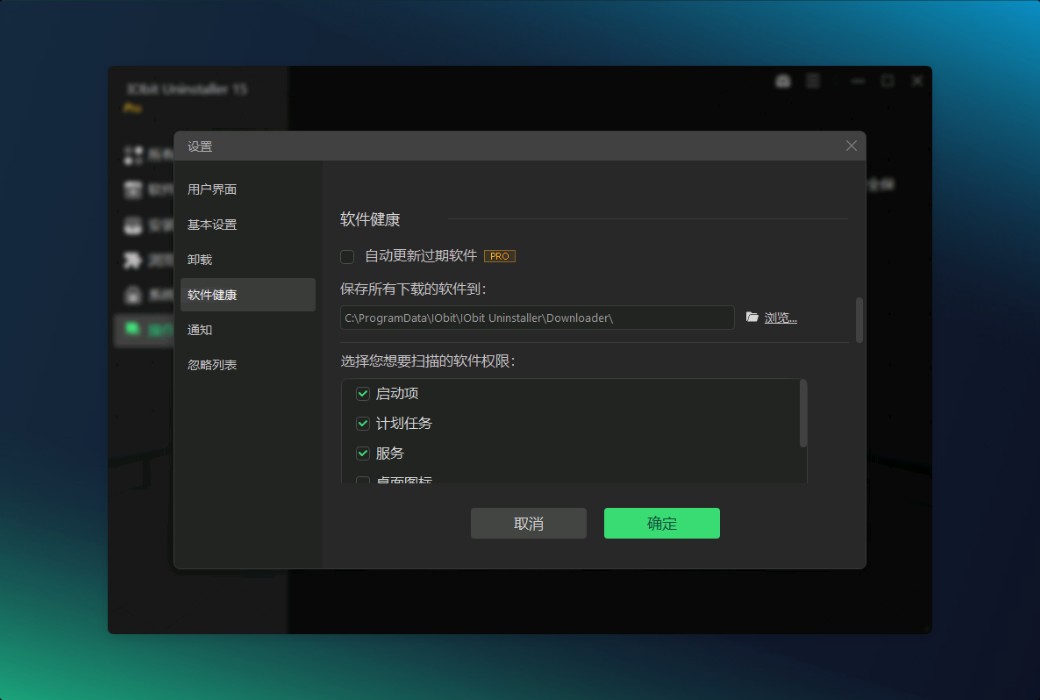
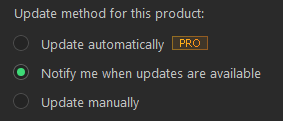
If you are using the PRO version, you can also set automatic updates to always enjoy the latest version automatically.
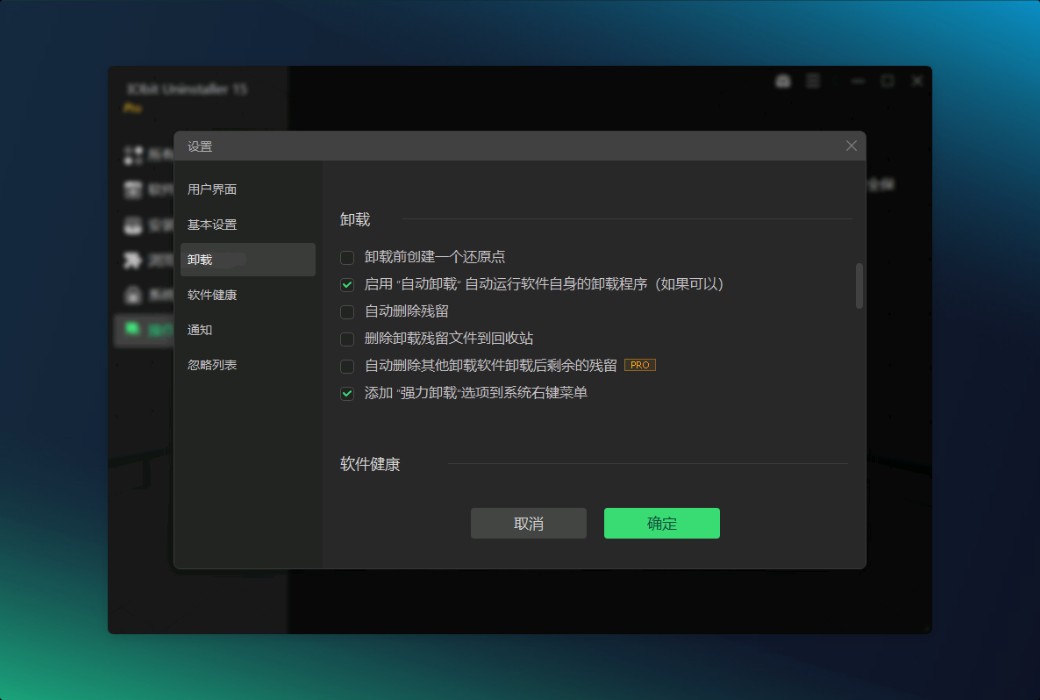
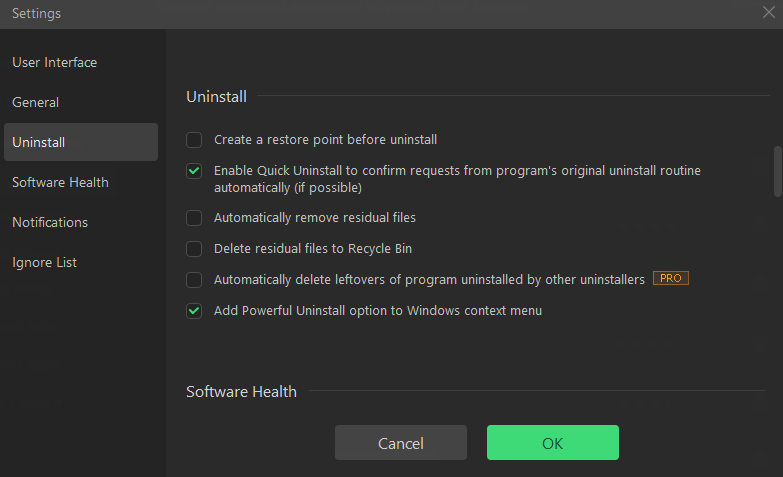
unload
Create a restore point before uninstallation: By selecting this option, IObit Uninstaller will create a restore point before uninstalling the program. Enable quick uninstallation to automatically confirm from
Request for program original uninstallation routine (if possible): By checking this item, IObit Uninstaller will automatically confirm the request from the program original uninstallation (if possible).
Automatically delete residual files: All residual files found will be automatically deleted.
Delete remaining files to the Recycle Bin: Files will be deleted to the Recycle Bin instead of permanently deleted from your computer so that you can recover them when needed.
Automatically delete the remaining parts of the program uninstalled by other uninstallers: If a third-party uninstaller or Windows uninstaller uninstalls the program, the IObit uninstaller will automatically delete all its remaining parts.
Add powerful uninstallation options to the Windows context menu: it enables you to easily launch the IObit uninstaller and start uninstalling from the Windows context menu. Add file fragmentation button to Explorer: With this feature, you can directly shred files from their location by clicking on the file shredder icon in Explorer.
Note: This option is not available on Windows 8 and later versions of the system.
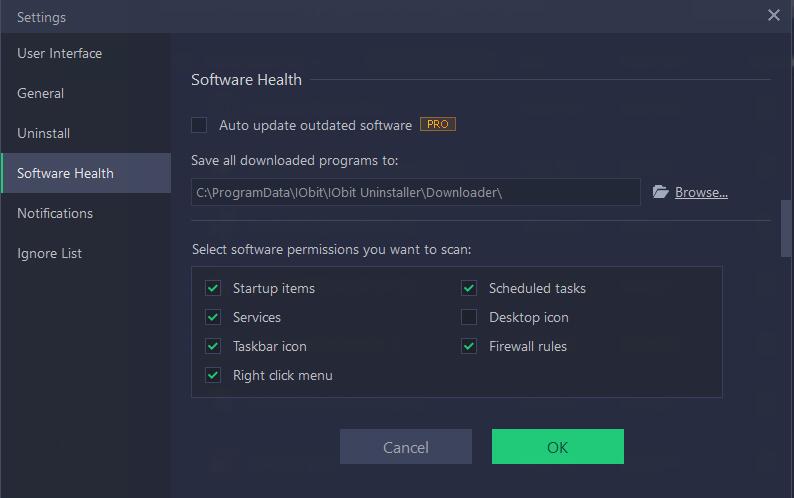
Software operation status
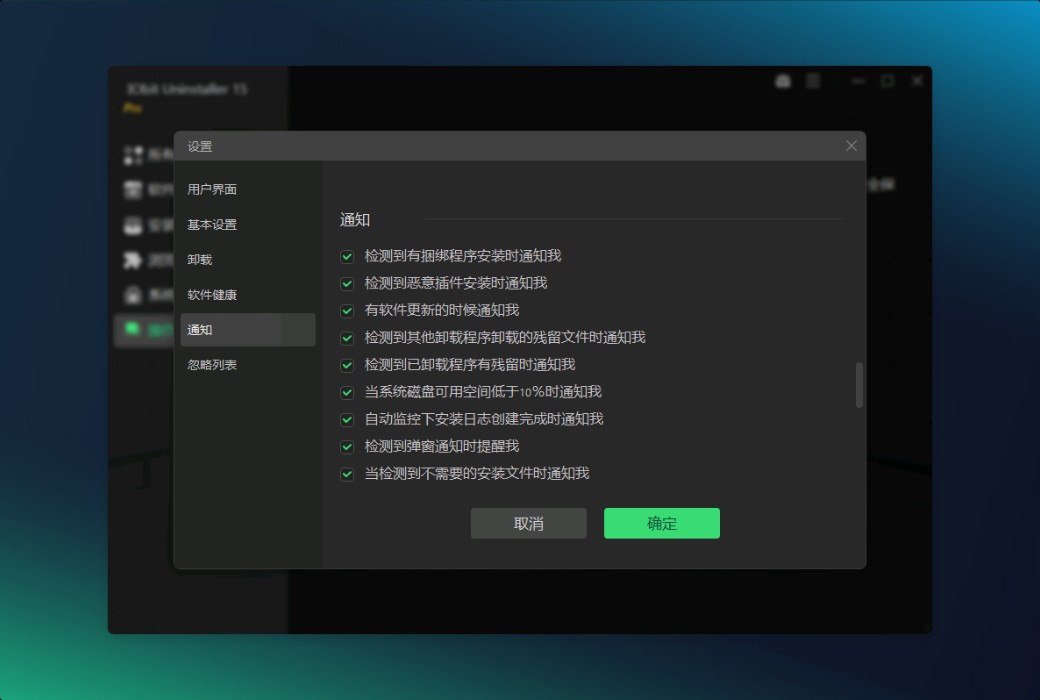
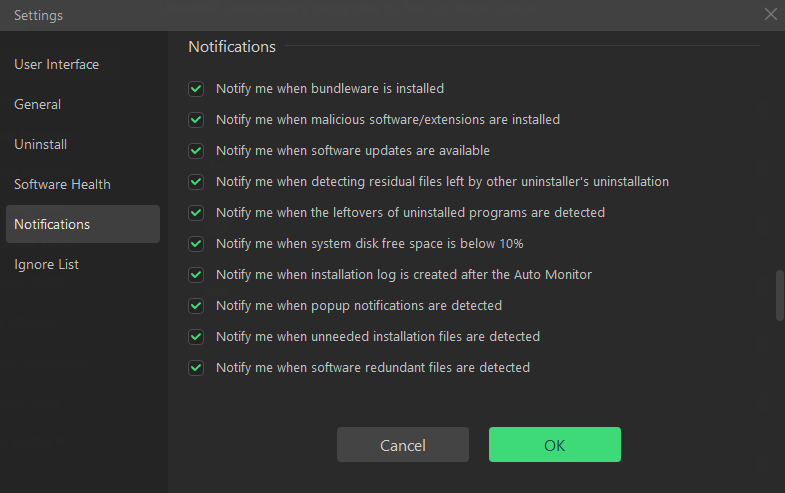
notice
Notify me when installing bundled software: Once any bundled software is installed and the IObit uninstaller window does not open, you will receive a notification.
Notify me when installing malware/extensions: Once any malware or extensions are installed on your computer, you will receive a notification to remove it.
Notify me when software updates are available: You will receive notifications when software updates are available.
Notify me when residual files left by other uninstallation programs are detected: You will receive a notification when there are residual files left by other uninstallation programs.
Notify me when the remaining part of the uninstalled program is detected: You will receive a notification when the remaining part of the uninstalled program is detected.
Notify me when the available system disk space is below 10%: You will receive a notification when your system disk available space is below 10%.
In Notify me when creating installation logs after Auto Monitor: If you enable Auto Monitor, you will receive a notification when creating installation logs.
Notify me when a pop-up notification is detected: You will receive a notification when a pop-up notification is detected.
Notify me when unwanted installation files are detected: You will receive a notification when unwanted installation files are detected.
Notify me when software redundancy files are detected: You will receive a notification when software redundancy files are detected.
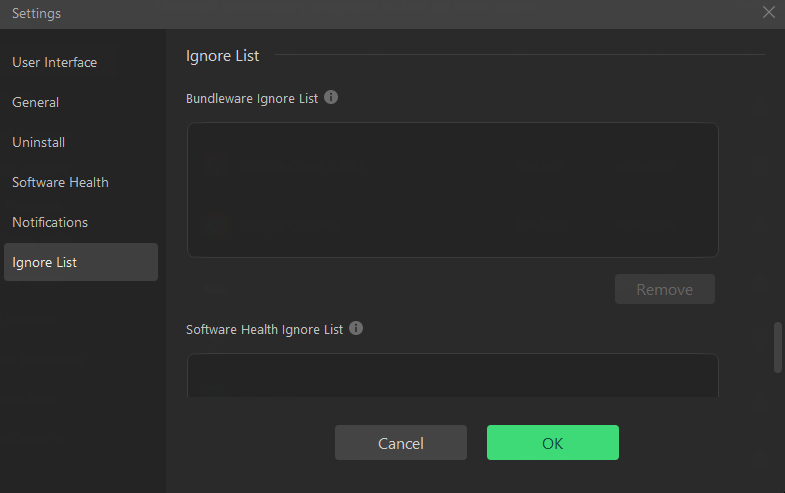
Ignore List The following is the ignore list for bundled software. Before deleting ignored items from the Ignore List, they will not be detected as bundled software.
Published on 2025-05-13
广东